

This beta version will stop working on April 30.
You're using a free beta build of Cantai. On April 30, this version will expire and playback will stop. To keep using Cantai beyond that date, you'll need a lifetime license — currently on sale for $150 (regular price $299). Your license covers MuseScore, Dorico, and Sibelius, all future voices, and all updates.
Get Your Lifetime License — $150 →Dorico Edition — Quick Start Guide
Cantai renders expressive vocal performances directly from your Dorico score. No manual phoneme editing, no fiddling with MIDI — just write your music and hear it sung.
What Cantai Does
Cantai reads your score — notes, lyrics, dynamics, tempo, expression markings — and generates a realistic sung vocal performance. It works inside Dorico as a dedicated playback device, so your vocal parts play back through Cantai automatically alongside the rest of your ensemble.
System Requirements
🍎 macOS
- macOS 12 Monterey or later
- Apple Silicon (M1 or later)
🪟 Windows
- Windows 10 (2020 update) or later
- x86-64 processor
Installation
- Run the installer and follow the on-screen prompts
- Launch Dorico — Cantai will appear as an available playback device
Activating Your License
- Create a free account at cantai.app (or log in if you already have one)
- Go to your Profile page to find your personal license key
- Paste the key into the field in the Cantai VST interface and click Activate

Activation is a one-time step per machine. Your key is valid for the duration of the beta.
Setting Up a Vocal Part
1. Add lyrics to your score
Select the first note in your vocal part and press Shift+L to open the lyrics popover. Type your lyrics, pressing Space to advance after a complete word, or - (hyphen) to advance after each syllable of a multi-syllable word.
2. Load Cantai in Play mode
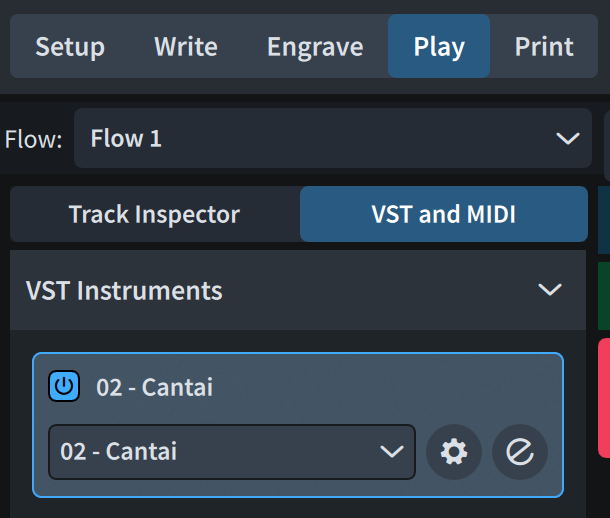
Switch to Play mode and open the VST and MIDI tab. Load one Cantai instance for each vocal stave you want Cantai to sing.
3. Select the vocal track
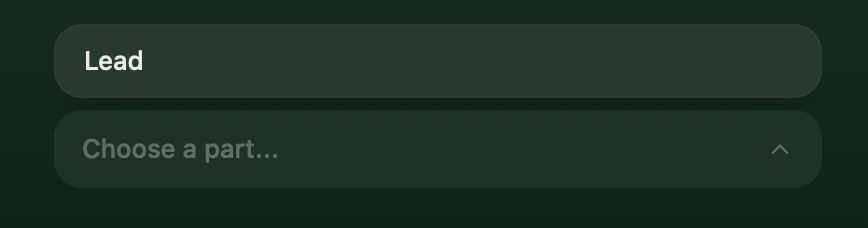
In Play mode, click on the vocal track you want to assign so it is highlighted. This ensures Dorico knows which track you're configuring — skipping this step can cause track detection issues.
4. Assign it in the Track Inspector
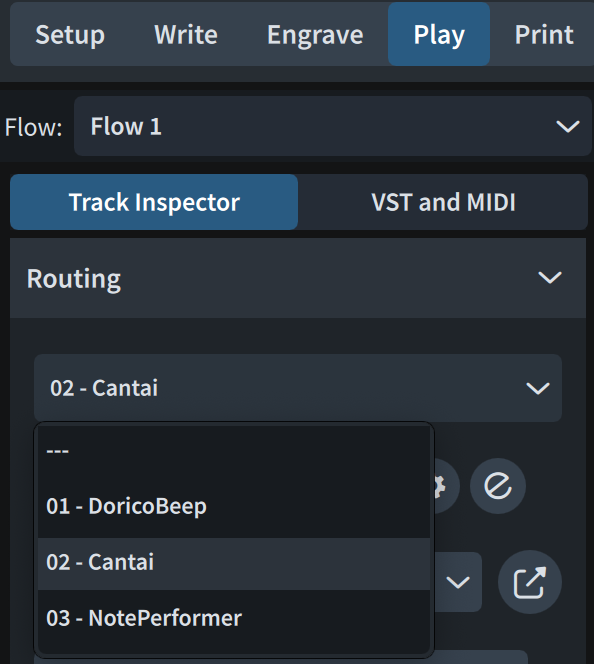
Click the Track Inspector tab and select the Cantai instance you just added. Dorico connects it to the corresponding voice automatically.
5. Press Play
That's it. Whenever you change anything that affects a vocal part — notes, lyrics, dynamics, tempo, or expression — Cantai automatically re-renders just the affected segments. No manual refresh needed.
Choosing a Voice
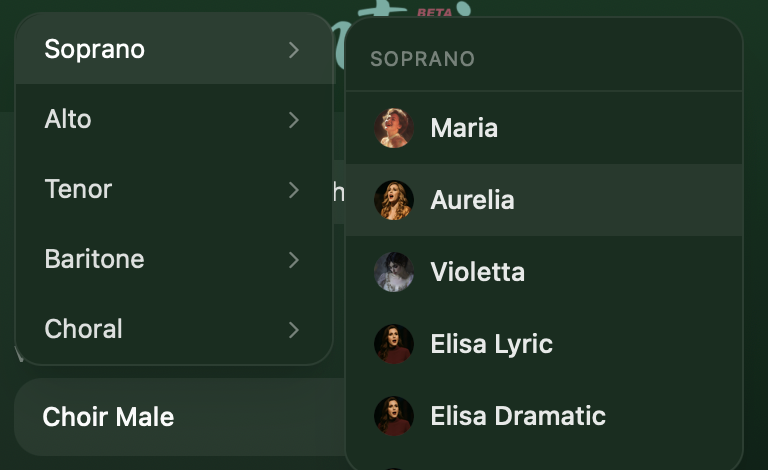
To change the voice assigned to a Cantai instance, click the Show Instrument button  next to the instance in the VST and MIDI panel. Select your preferred voice from the dropdown in the Cantai interface.
Choral Voices
Cantai includes two dedicated choir voices — Choir — Female and Choir — Male — which render a full choral section rather than a single singer. To set the number of voices per part (3–10), open the menu in the Cantai VST interface and adjust the choir section count.
The menu also provides Clear Cache and Reset Instance Settings options if you need to troubleshoot or start fresh.
Supported Languages
The beta supports English only. Latin arrives with the full launch on April 30, with more languages to follow in subsequent updates.
Language is detected automatically from your lyrics. For best results, ensure your lyrics are spelled correctly — Cantai's phoneme engine derives pronunciation directly from the text.
Known Beta Limitations
Dynamics and Expression
You do not need to draw in any MIDI automation. Write your score the way you would for human performers, and Cantai interprets it.
Dynamic markings     p, mp, mf, f, ff, etc.
Hairpins             crescendo, decrescendo
Tempo markings       Allegro, Andante, ritardando, etc.
Tips for Best Results
- after each syllable to advance to the next note.
Exporting Audio
- Choose File > Export > Audio
- Select the flows and players you want to include
- Choose your format — WAV for highest quality, MP3 for smaller file size
- Click OK to export
Cantai audio exports at full quality — the same engine used for real-time playback renders the final file.
Reporting Issues
If something isn't working or you run into a problem during the beta, let us know through the Help chat button in the bottom-right corner of any page on cantai.app. It's the fastest way to reach us and helps us track beta feedback.
To help us diagnose the issue, please include your log files — just drag them into the Help chat window:
🍎 macOS
Server log: ~/Library/Caches/Cantai/stderr.txt
VST log:    ~/Library/Caches/Cantai/VST.log
Replace ~ with your home folder, e.g. /Users/yourname
🪟 Windows
Server log: %LOCALAPPDATA%\Cantai\stderr.txt
VST log:    C:\Users\yourname\.cache\Cantai\VST.log
Replace yourname with your Windows username
Licensing
$150 lifetime license (regular $299) — unlimited installs, free updates.
Get Your Lifetime License — $150 →Cantai is made by Turing Opera Workshop. We build tools for composers who take vocal writing seriously.